
You can use the link below to reset your password.
https://passwordreset.microsoftonline.com/
Note: if you have not setup a backup method to receive a password reset, you will need to contact OHA at support@ohiohospitals.org.
OPTION 1: RESET YOUR PASSWORD USING THE RESET PASSWORD URL
- Navigate to https://passwordreset.microsoftonline.com/
- Using the screen below, enter your OHA Username (ending with @myoha.org)
- Click Next
- Choose the contact method you should use for verification. (Note: Most users are set up for password reset with their work email address,)
- Click Email
- Check your email address for the verification code sent.
- Enter the verification code into the password reset screen.
- Click Next
- Enter a new password
- Passwords must be at least 8 characters in length and include three of the following: 1 uppercase letter, 1 lowercase letter, 1 number, and 1 special character.
- Click Finish
OPTION 2: SWITCH TO YOUR OHA ACCOUNT FIRST
Some organizations have rules preventing users from using the Microsoft password reset URL (https://passwordreset.microsoftonline.com/). In that case, you can using the following steps to switch to your OHA account first.
1. Go to https://myaccount.microsoft.com/
2. In the top right corner, select your profile.
3. At the bottom of the drop-down menu, click on "Sign in with a different account".
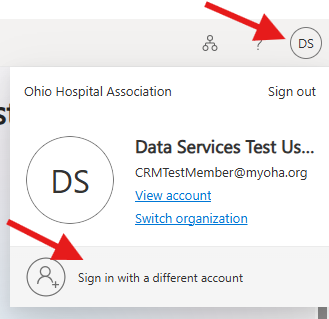
4. On the next screen, choose "Use another account."
5. Enter your OHA username.
Note: your OHA username ends with @myoha.org
6. On the Enter password screen, click "Forgot my password".
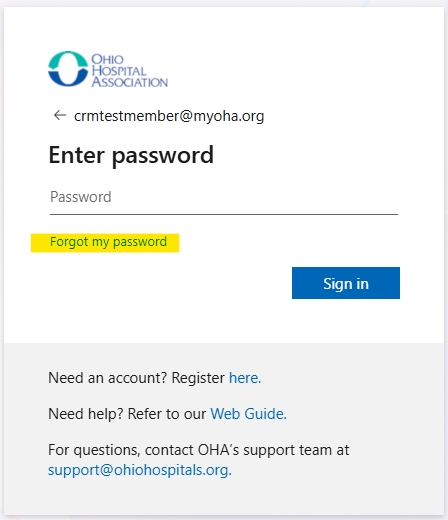
7. Enter your OHA username and follow the prompts on the screen.
Note: if you have not setup a backup method to receive a password reset, you will need to contact OHA at support@ohiohospitals.org.