
If you're unable to sign in to an OHA application, you may be signed in with your organization's Microsoft 365 account instead of your OHA account.
If your work email address is automatically selected, follow the steps below to switch to your OHA account.
Note: Your OHA username ends with @myoha.org
Option 1: Sign In with a Different Account (Recommended)
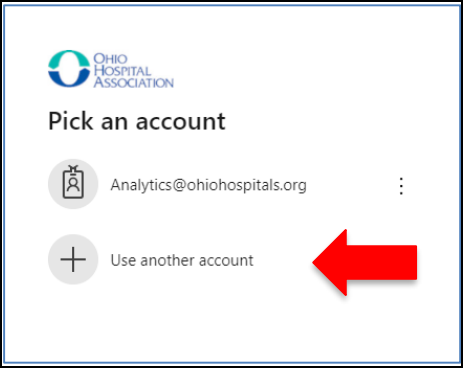
If you see your work email address on the Microsoft sign-in screen:
- Return to the OHA sign-in page.
- Select Use another account.
- Enter your OHA username (ending in @myoha.org).
- Enter your OHA password.
- Continue signing in.
Option 2: If You Don't See "Use Another Account"
Some organizations automatically sign you in and don't display the option to choose another account. If that happens:
- Go to https://myaccount.microsoft.com/
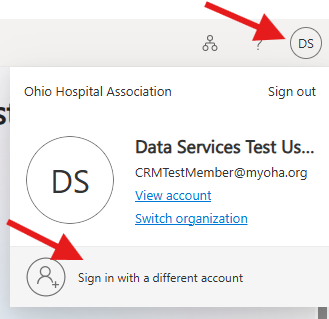
- In the top right corner, select your profile icon.
- At the bottom of the drop-down menu, select Sign in with a different account.
- On the next screen, select Use another account.
- Login with your OHA username and password.
Still Having Trouble?
If you're still unable to sign in, contact support@ohiohospitals.org and include:
- The name of the OHA application you're trying to access.
- The email address that appears on the Microsoft sign-in screen.
- A screenshot of any error message you receive (if available).
This information will help our support team resolve your issue more quickly.